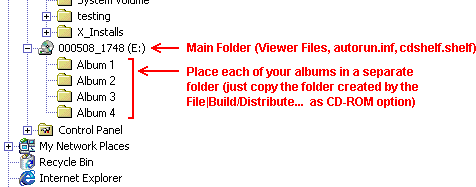
In the main (root) CD folder copy your Default.Shelf file, but RENAME it to CDShelf.shelf (if a cdshelf.shelf file is found in the main folder of the CD it will override all over *.shelf files on the CD).
You will probably have to edit this as follows.
Open it in Notepad.
Let's say it currently reads:
[Album_1]
Name=Valencia
Path=C:\Program Files\Diji Album\Album 1\Valencia.alp
Colour=$000080FF
Height=175
Style=3
[Album_2]
Name=Wellington
Path=C:\Program Files\Diji Album\Album 2\Wellington.alp
Colour=$00DD7735
Height=175
Style=3
[Album_3]
Name=Maryland
Path=C:\Program Files\Diji Album\Album 3\Maryland.alp
Colour=clGreen
Height=175
Style=1
[Album_4]
Name=Edinburgh
Path=C:\Program Files\Diji Album\Album 4\Edinburgh.alp
Colour=clBlue
Height=175
Style=1
You need to change the directory locations to match the structure of the CD, except that rather than putting your
CD drive letter in you use %. I.e. for our example, we should
edit the shelf file as follows:
[Album_1]
Name=Valencia
Path=%:\Album 1\Valencia.alp
(where "Album 1" is the name of the folder, and "Valencia.alp" is the name of the album file. I.e. if you insert your created CD into your drive and run "My Computer" and open the icon for your CD, it needs to contain a folder named "Album 1" and if you double-click on that, it needs to have a file "Valencia.alp")
Colour=$000080FF
Height=175
Style=3
[Album_2]
Name=Wellington
Path=%:\Album 2\Wellington.alp
Colour=$00DD7735
Height=175
Style=3
[Album_3]
Name=Maryland
Path=%:\Album 3\Maryland.alp
Colour=clGreen
Height=175
Style=1
[Album_4]
Name=Edinburgh
Path=%:\Album 4\Edinburgh.alp
Colour=clBlue
Height=175
Style=1
|